
What is a PDF Pen? An Overview
PDF pens, or PDF annotation tools, empower users to directly write and draw on PDF documents digitally. These tools bridge the gap between traditional paper-based workflows and the convenience of digital documents, offering a versatile solution for reviewing, editing, and collaborating on PDFs.
The rise of digital annotation reflects a growing need for efficient document handling, especially in fields like law, education, and business, where precise markup and feedback are crucial.
Defining PDF Pen Software
PDF pen software fundamentally transforms how we interact with Portable Document Format (PDF) files. Unlike traditional PDF readers that primarily focus on viewing, these specialized applications allow for direct annotation – essentially, digital handwriting – onto the document itself. This includes highlighting key passages, adding freeform notes, sketching diagrams, and even digitally signing documents.
At its core, a PDF pen tool emulates the experience of using a physical pen on paper, but within a digital environment. Software like PDF Annotator, Smart PDF Editor, Kaku, Hancom Flexcil, and PDF-XChange Editor provide a range of features to achieve this, from basic pen and highlighter tools to advanced options like pressure sensitivity and customizable pen styles.
These programs aren’t merely about adding visual marks; they’re about enhancing document workflows, facilitating collaboration, and preserving the integrity of the original PDF while adding layers of insightful commentary. They are essential for anyone needing to actively engage with and modify PDF content.
The Rise of Digital Annotation
The increasing adoption of digital annotation stems from a confluence of factors, primarily the widespread use of PDFs as the standard for document exchange. Legal documents, forms, and academic papers frequently utilize the PDF format, necessitating tools for review and modification. Traditional methods, like printing, marking up, and then rescanning, are inefficient and environmentally unfriendly.
The proliferation of touchscreen devices – iPads, Android tablets, and even smartphones – has further fueled this trend. Coupled with stylus support, like the Apple Pencil, these devices offer a natural and intuitive way to annotate PDFs, mimicking the feel of pen on paper. Software like Hancom Flexcil specifically leverages this hardware integration.
Furthermore, remote work and collaborative projects demand digital solutions for document review. PDF pen tools facilitate real-time feedback and streamlined workflows, making them indispensable for modern professionals and students alike. The need for efficient, accessible, and secure document handling drives the continued growth of digital annotation.

Key Features of PDF Pen Tools
Essential features include highlighting, note-taking, freehand drawing, and varied pen styles. Advanced tools offer pressure sensitivity, hardware compatibility, and precise color/width adjustments for optimal annotation.
Annotation Capabilities: Highlighting & Notes
PDF pen tools excel in annotation, primarily through highlighting and note-taking features. Highlighting allows users to emphasize key text passages with customizable colors, ensuring important information stands out. This is invaluable for document review and study purposes.
Beyond highlighting, the ability to add notes directly onto the PDF is crucial. These notes can be text-based, providing detailed explanations or feedback, or they can be freeform, allowing for more expressive commentary. Annotations facilitate collaboration, enabling multiple users to contribute their insights directly onto the document.
Effective PDF pens support various note styles and placement options, ensuring annotations are clear, organized, and don’t obscure the underlying content. The combination of highlighting and notes transforms static PDFs into dynamic, interactive documents, fostering a more engaging and productive workflow.
Freehand Ink Drawing & Pen Styles
PDF pen software frequently offers robust freehand ink drawing capabilities, mimicking the experience of writing on paper. This allows for sketching diagrams, creating signatures, or adding detailed annotations that go beyond simple text or highlighting. The quality of these tools hinges on the variety of pen styles available.
Users can typically customize line thickness, color, and opacity to achieve the desired visual effect. Some programs, like PDF Annotator, provide options for tip styles – vertical, horizontal, or squared – influencing the appearance of the ink. Pressure sensitivity, when supported by the hardware, further enhances realism, varying line weight based on applied pressure.
These stylistic choices are vital for clarity and professionalism. A well-chosen pen style can distinguish between different annotators or highlight specific types of feedback, making the PDF a more effective communication tool.
Pressure Sensitivity & Hardware Support
PDF pen software’s ability to leverage pressure sensitivity significantly elevates the digital annotation experience. When paired with a stylus or tablet that supports pressure levels, the software can dynamically adjust line weight and opacity based on how hard the user presses. This mimics the natural variation of traditional pen and ink, offering greater control and expressiveness.
Hardware support is crucial; programs like Hancom Flexcil are specifically designed for Apple Pencil integration, maximizing this feature on iPads. PDF Annotator also variates pen width according to pressure when compatible hardware is detected. However, compatibility isn’t universal – some tools, like those within WPS Office, may not fully support pen input.
Optimal performance requires a harmonious blend of software and hardware, unlocking the full potential of digital inking for detailed annotations and creative expression.

Popular PDF Pen Software Options
Numerous PDF pen software choices exist, each with unique strengths. Options include PDF Annotator, Smart PDF Editor, Kaku, Hancom Flexcil, and PDF-XChange Editor, catering to diverse user needs and preferences.
PDF Annotator: Tool Styles and Customization
PDF Annotator stands out with its extensive tool styles and customization options, providing users with granular control over their annotations. The software allows precise setting of Color and Pen Width for both pen and marker tools. Users aren’t limited to presets; they can define exact colors and specify widths in either millimeters or inches, ensuring accuracy for technical drawings or detailed reviews.
Furthermore, PDF Annotator offers varied Tip Styles for the marker tool, including Vertical (the default), Horizontal, and Squared options, enabling stylistic preferences. A key feature is its pressure sensitivity, which, when supported by the user’s hardware, dynamically adjusts the pen width based on the applied pressure. This mimics the natural feel of writing with a traditional pen on paper, enhancing the annotation experience. This software is designed for users who require a high degree of control and personalization in their PDF markup process.
Smart PDF Editor: Focus on Ink Annotations
Smart PDF Editor is a powerful PDF editing solution specifically engineered for creating ink annotations. This focus makes it an ideal tool for users who prioritize handwritten notes, signatures, and freeform drawing directly onto PDF documents. The editor streamlines the process of adding annotations, offering a smooth and responsive experience for those who prefer a pen-based workflow.
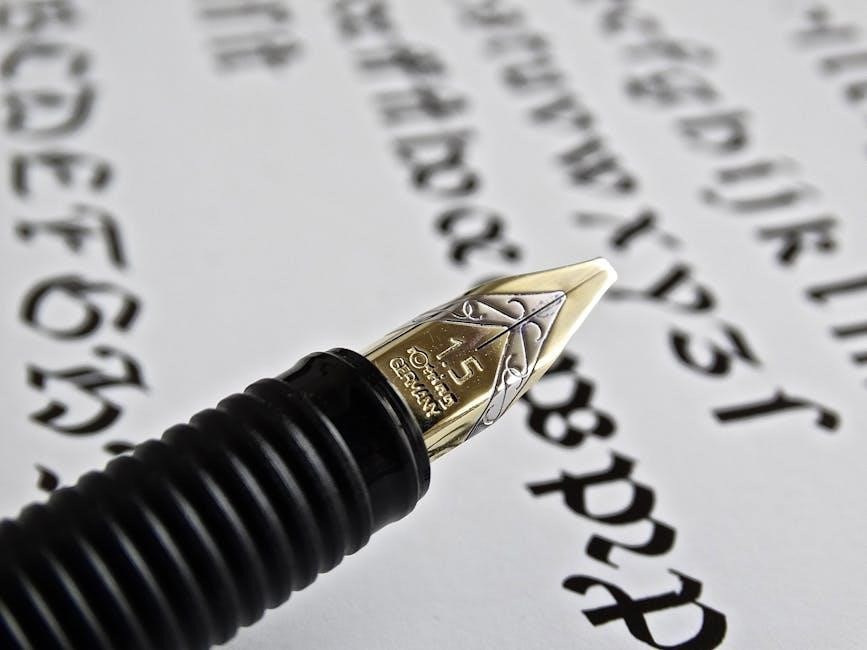
Within Smart PDF Editor, users can access features like Graffiti ─ Draw curve, allowing for freehand writing and signing. This functionality is particularly useful for quickly marking up documents on the go. The software is designed to replicate the natural feel of pen and paper, making it a comfortable choice for extended annotation sessions. It’s a dedicated solution for those who heavily rely on ink-based markups for review, feedback, and collaboration.
Kaku: Simple and Intuitive PDF Editing
Kaku distinguishes itself as a remarkably simple and intuitive PDF editor, built upon the core principle of “Write Simply, Work Anywhere.” This philosophy translates into a streamlined interface, deliberately minimizing complex menus and options that can clutter other PDF tools. Kaku prioritizes ease of use, allowing users to quickly and efficiently annotate PDFs without a steep learning curve.
The application excels at enabling users to write and sign PDFs with minimal friction. Its focus on core annotation features – like pen tools and signature insertion – makes it a perfect choice for individuals who need a straightforward solution for marking up documents. Kaku’s design emphasizes accessibility, ensuring that users can seamlessly work with PDFs across various devices and platforms, promoting productivity and convenience.
Hancom Flexcil: Apple Pencil Integration
Hancom Flexcil is a dedicated PDF annotating and editing application specifically designed for iPad, capitalizing on the capabilities of the Apple Pencil or any user-preferred touch pen. This app allows users to load PDF files and directly write on them, simulating the natural feel of pen on paper with remarkable precision.
Flexcil’s strength lies in its seamless Apple Pencil integration, offering pressure sensitivity and tilt support for a realistic writing experience. It’s tailored for students, professionals, and anyone who frequently reviews and marks up PDFs on their iPad. The app provides a fluid and responsive interface, making annotation a breeze. Flexcil transforms the iPad into a powerful digital notebook, enhancing productivity and streamlining document workflows for those within the Apple ecosystem.
PDF-XChange Editor: Feature-Rich Editing
PDF-XChange Editor stands out as a comprehensive PDF solution, boasting an extensive array of features for both creating and editing PDF documents. Beyond basic annotation, it offers advanced capabilities, making it a powerful choice for users needing more than just simple markup tools. This editor allows for detailed control over PDF content, including text editing, object manipulation, and form creation.
As a PDF pen alternative, it provides a robust set of annotation tools, alongside functionalities like OCR (Optical Character Recognition) and advanced security options. Its feature-rich environment caters to professionals and power users who require a versatile and customizable PDF editing experience. PDF-XChange Editor aims to be an all-in-one solution for managing and modifying PDF files effectively.

Using a PDF Pen: A Step-by-Step Guide
Utilizing a PDF pen typically involves opening your document, selecting the pen tool, adjusting settings like width and color, and then directly drawing or writing on the PDF.
Opening a PDF for Annotation
Initiating the annotation process begins with opening your desired PDF document within your chosen PDF pen software. Most applications offer a straightforward “Open” function, accessible via the File menu, allowing you to browse your computer’s storage and select the PDF file.
Alternatively, you can often drag and drop the PDF file directly onto the application’s interface. Once opened, the PDF will be displayed in the main viewing area, ready for annotation.
Ensure the PDF is not password-protected or has restrictions preventing editing, as this will hinder your ability to add annotations. Some software may prompt you for a password if restrictions are in place.
Familiarize yourself with the software’s interface; locate the toolbar or panel containing the pen and annotation tools, as this is where you’ll access the features needed to mark up your document effectively.
Selecting the Pen Tool
Locating the pen tool is a fundamental step in PDF annotation. Within your PDF pen software, the pen tool is typically represented by an icon resembling a traditional pen or pencil. It’s usually found in the toolbar, alongside other annotation options like highlighters and sticky notes.
Clicking on this icon activates the pen tool, preparing it for use on the PDF document. Some applications may offer variations of the pen tool, such as a freehand pen or a curve-drawing pen, allowing for different styles of annotation.
Once selected, your cursor will change to indicate that the pen tool is active, often displaying a pen nib or a crosshair. You can then move the cursor to the desired location on the PDF and begin drawing or writing.
Remember to explore the tool’s settings for customization options, such as pen width and color, to tailor your annotations to your specific needs.
Adjusting Pen Width and Color

Customizing your pen’s appearance is crucial for effective PDF annotation. Most PDF pen software allows you to easily adjust both the pen width and color. Typically, these settings are found in a properties panel or toolbar associated with the pen tool.
You can often select from a preset range of colors, or define a custom color using a color picker. Similarly, pen width can be adjusted using a dropdown menu or a slider, often measured in millimeters or inches. PDF Annotator allows setting exact widths.
Experimenting with different widths and colors can help you create annotations that are clear, concise, and visually appealing. Thicker lines are useful for emphasis, while thinner lines are better for detailed work. Consider the document’s background and the purpose of your annotations when choosing colors.
Drawing and Writing on PDFs
Once the pen tool is selected and customized, you can begin drawing and writing directly onto your PDF document. Simply click and drag with your mouse or stylus to create lines, shapes, and freehand annotations. For writing, click and type to add text.
Some software, like Smart PDF Editor, excels in ink annotations, allowing for natural handwriting experiences. Others, such as Kaku, prioritize simplicity for quick signatures and notes. Utilizing features like drawing curves (found in some programs) can refine your annotations.
Remember that WPS Office does not support pen functionality for certain PDFs; Ensure compatibility with your chosen PDF reader. Experiment with different techniques to achieve the desired effect, and leverage pressure sensitivity if your hardware supports it for varied line weights.

Troubleshooting Common Issues
Common problems include ghost document overlays, pen tool malfunctions (especially in WPS Office), and compatibility issues with various PDF readers. Addressing these ensures a smooth annotation experience.

Ghost Document Overlay Problems
Experiencing a “ghost document” overlay while using a PDF pen can be incredibly frustrating. This issue, where a faint, seemingly editable version of the PDF appears on top of the actual document, often disrupts the annotation process. It seems to occur when opening PDFs from certain websites, creating a confusing visual experience.

The root cause isn’t always clear, but it often relates to how the PDF reader interprets the document’s layers or rendering instructions. Sometimes, clearing the cache of your PDF reader or browser can resolve the problem. Additionally, ensuring your PDF viewer is up-to-date with the latest version may contain fixes for rendering glitches. If the issue persists, trying a different PDF reader altogether could bypass the incompatibility causing the overlay. Restarting your computer can also help clear temporary files that might be contributing to the problem.
Pen Tool Not Working in WPS Office
Users have reported issues with the pen tool functionality within WPS Office when attempting to annotate PDF documents. Specifically, WPS Office demonstrably does not support pen input for direct writing or signing on PDFs. While WPS Office offers PDF viewing and basic editing capabilities, its feature set lacks the necessary components for robust ink annotation.
To enable writing or signing, users must navigate to the “Comment” section, then “Graffiti,” and finally select “Draw curve.” This workaround, while functional, isn’t a direct pen tool experience. For a more seamless annotation workflow, utilizing dedicated PDF pen software like PDF Annotator, Smart PDF Editor, or Kaku is recommended. These applications are designed with comprehensive pen tool support, offering features like pressure sensitivity and varied pen styles, which are absent in WPS Office’s PDF handling.
Compatibility with Different PDF Readers
Ensuring compatibility across various PDF readers is a crucial consideration when utilizing PDF pen software. While the PDF format is standardized, the interpretation and support for annotation features can differ significantly. Basic PDF readers bundled with iOS and Android devices often provide limited annotation capabilities, potentially rendering complex pen-based edits invisible or distorted when opened in those viewers.
Dedicated PDF pen tools generally aim for broad compatibility, but issues can arise. A reported problem involves a “ghost document overlay” appearing when opening PDFs on certain sites, suggesting a conflict between the annotation layer and the reader’s rendering engine. To maximize compatibility, saving annotated PDFs in a widely supported format and testing across multiple readers—like Adobe Acrobat Reader, Preview (macOS), and others—is highly recommended.